To avoid clutter in your inbox, all invoices are now kept safely online in your account.
You can access your invoice at any time simply by logging in and following the steps below:
1. Login to your account on the relevant website using the email address used to place your order.
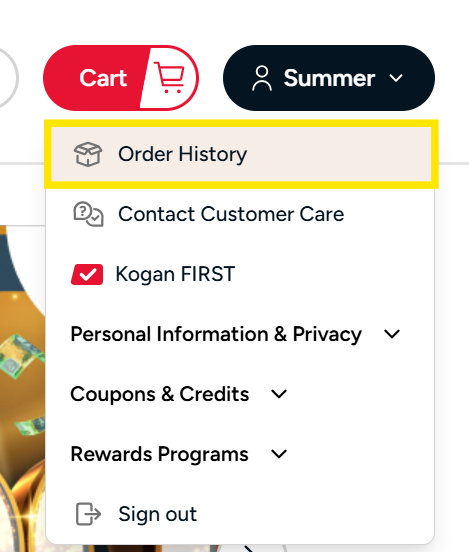
2. Select 'Order History' from the drop-down menu at the top right of the page.
3. Choose the order you want to view by clicking the 'Show details' button.

4. Click the 'View Invoice' button.
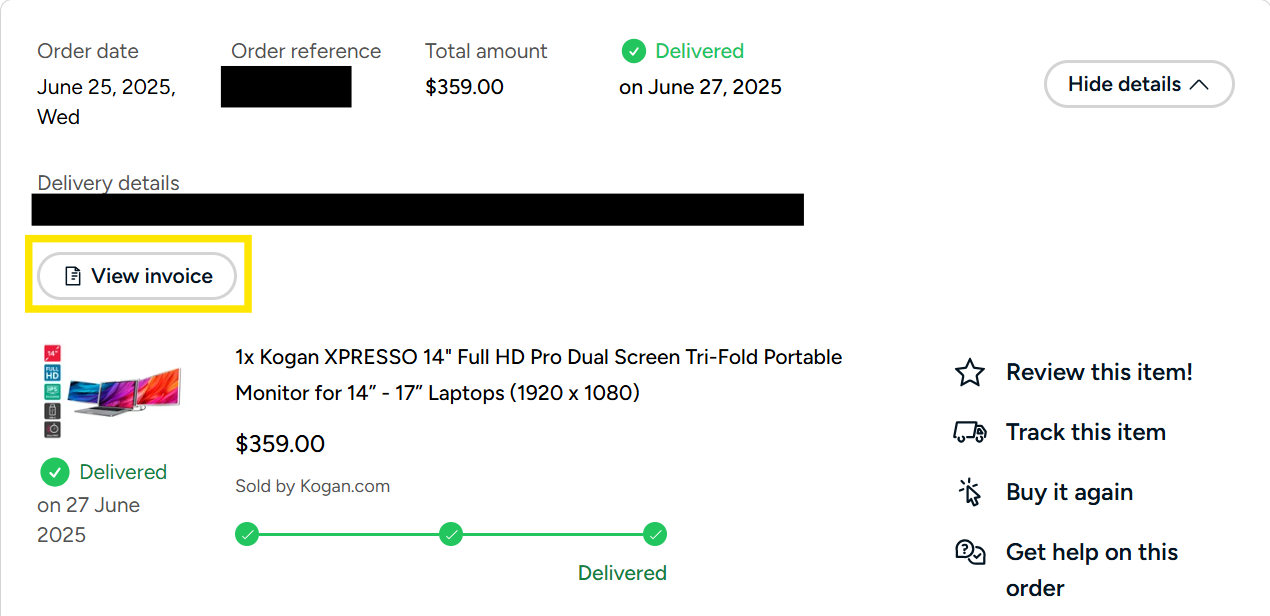
If this is one of our products you will be able to view the invoice immediately.
If this is a product sold by our marketplace sellers please continue the steps below:
5. A new page will load - click the product link that appears
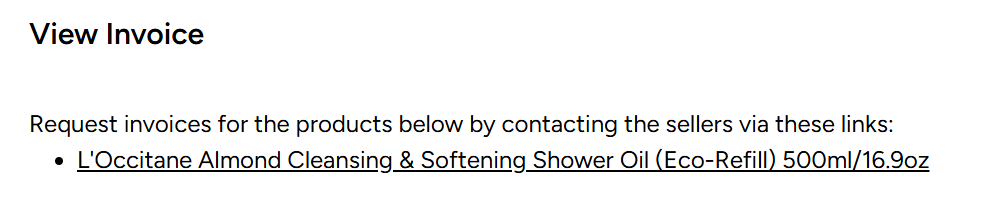
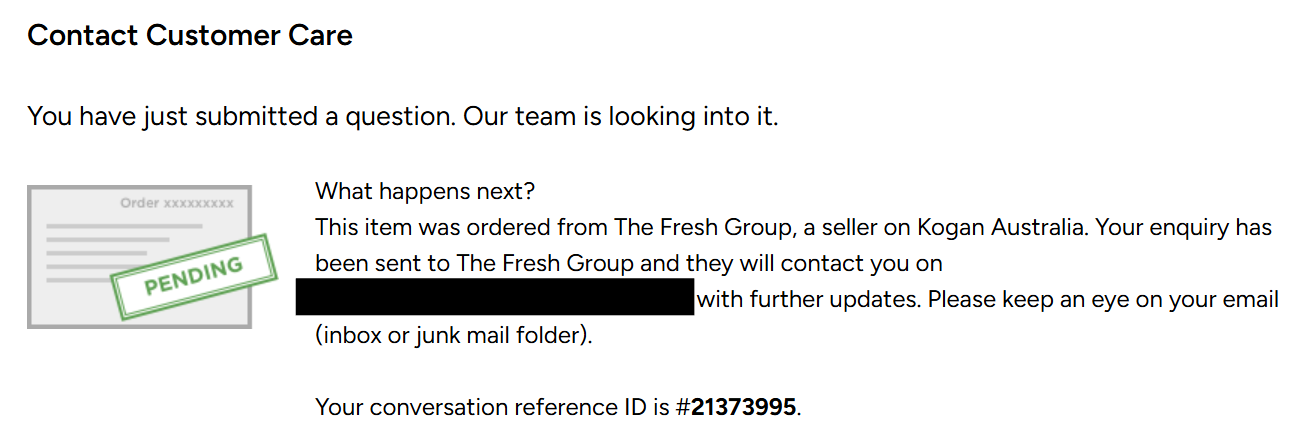
6. Your invoice request has now been submitted to the seller and they will provide it under a ticket with the reference ID that is shown on the page
Saving /Printing Your Invoice
Print A Copy Of Your Invoice:
 :
:
Save A Copy Of Your Invoice As A PDF

Things To Note:
-
You may have multiple invoices for one order if you ordered more than one item and they are being shipped from different warehouses.
-
Invoices are generated when your order leaves our warehouse, so once you have your tracking details you can view your invoice.
-
If you're not able to locate your order in the history in your account, please contact us through your account and we'll look into it for you.